> For the complete documentation index, see [llms.txt](https://ask.birdie.ai/llms.txt). Markdown versions of documentation pages are available by appending `.md` to page URLs; this page is available as [Markdown](https://ask.birdie.ai/admin-and-settings/notifications/digests.md).
# Digests
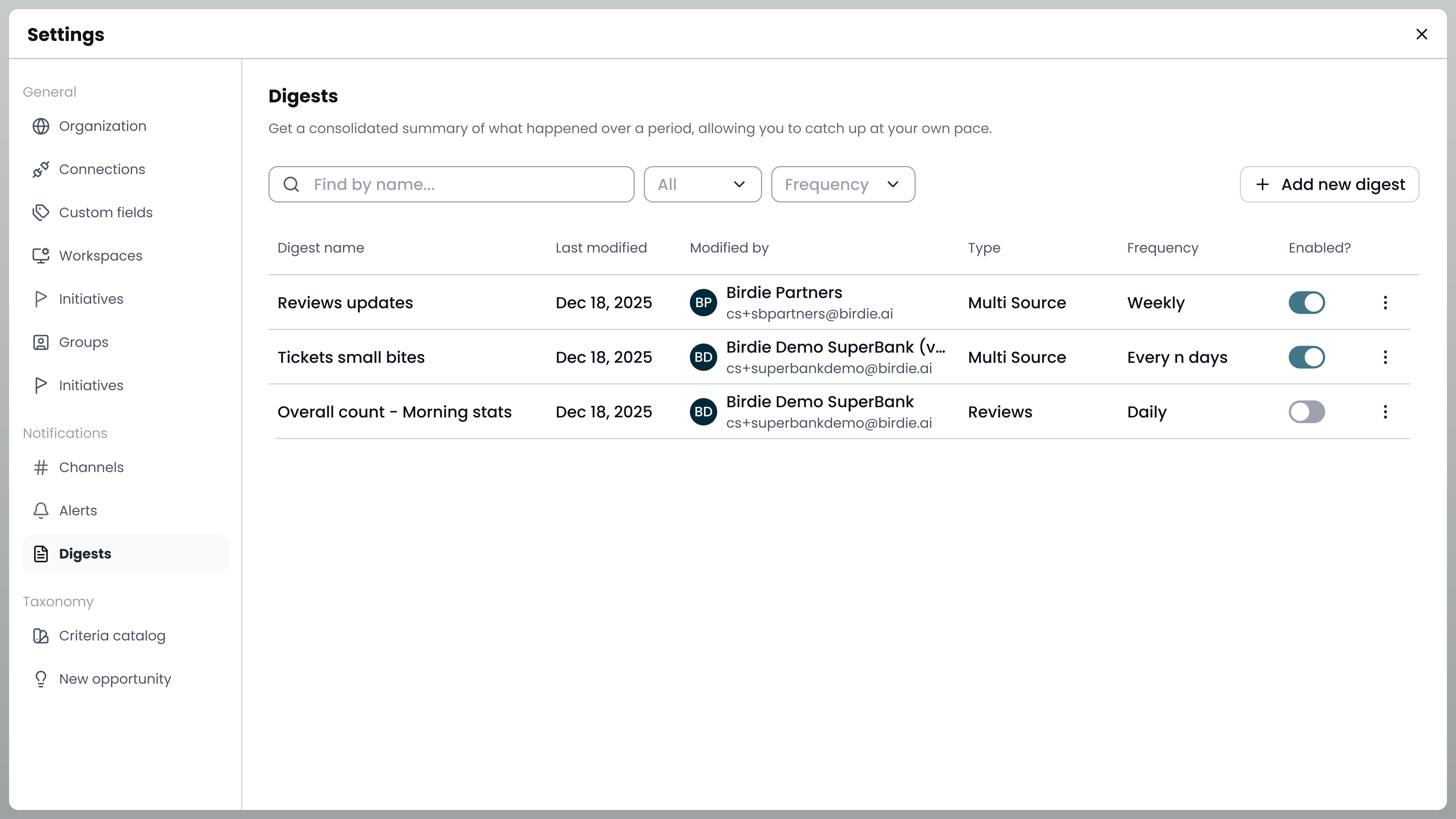
Digest Notifications in Birdie allow you to stay on top of your customer feedback by sending aggregated reports directly to your Slack workspace. With custom filters, flexible layouts, and scheduling options, you can design digests tailored to your team’s needs.\
## What Are Digest Notifications?
Digest notifications provide a recurring summary of feedback data ingested into Birdie. Each digest supports custom filters, so you can create multiple digests with different scopes by combining sources, segments, or any other available filters in your Birdie account.
We currently support two digest layouts:
* Review Pulse\
Designed specifically for App Review data, this layout is perfect for tracking new low-rating reviews from the Google Play Store and Apple App Store. These reviews are sent straight to your selected Slack channel, allowing your team to react quickly.
* Multi-Purpose Pulse\
A flexible layout that can be used with any mix of sources and filters. This option is ideal if you want to track multiple types of feedback together.
Both layouts include:
* Support for custom filters
* Configurable schedules
* Ability to deliver to one or more Slack channels simultaneously
{% stepper %}
{% step %}
### Enable a Slack Channel
Before creating a digest, you must authorize Birdie to send messages to a Slack channel:
* Go to .
* Open the Channels tab.
* Click + Add Slack channel.
* A Slack configuration page will open. Follow the instructions to add a public channel, private channel, or direct message (DM) as a destination.
At this stage, Birdie is authorized to publish messages to your selected channel, but no digest has been set up yet.
{% endstep %}
{% step %}
### Create a Digest
Once your Slack channel is connected, configure your digest:
* Go to the Digest tab.
* Click + Add new Digest.
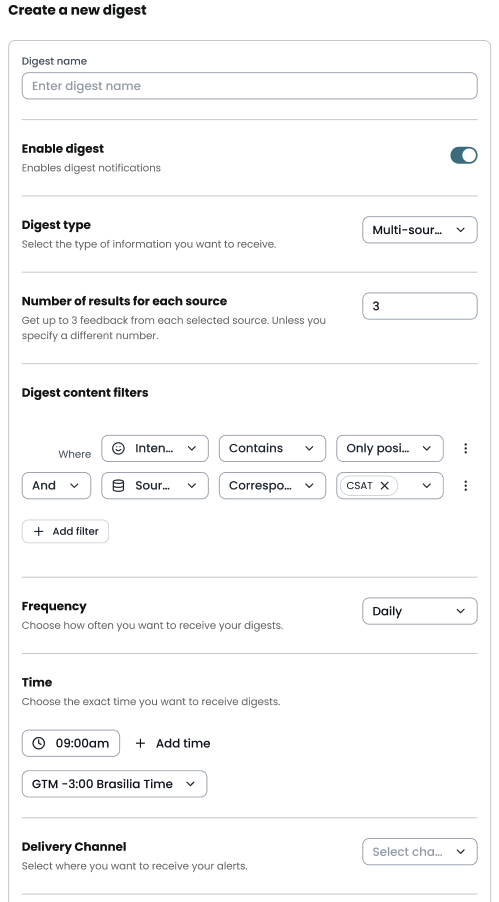
* Enter a name for your digest (to help with management).
* Choose your layout:
* Review Pulse
* Multi-Purpose Pulse
* Define your filters.
* The more specific your filters, the more relevant your notifications will be.
* You can create multiple digests for different use cases.
* Set the frequency and delivery time that best fits your team’s workflow.
* Select your delivery channels.
* You can send the same digest to multiple Slack channels at once.
{% endstep %}
{% endstepper %}
That’s it!
Your digest is now live. Birdie will automatically send feedback digests to your selected Slack channels, helping your team stay aligned and proactive.
{% hint style="info" %}
Need more help? Reach out to our support team anytime.
{% endhint %}
---
# Agent Instructions
This documentation is published with GitBook. GitBook is the documentation platform designed so that both humans and AI agents can read, navigate, and reason over technical content effectively. Learn more at gitbook.com.
## Querying This Documentation
If you need additional information that is not directly available in this page, you can query the documentation by asking a question.
Perform an HTTP GET request on the following URL with the `ask` and `goal` query parameters:
```
GET https://ask.birdie.ai/admin-and-settings/notifications/digests.md?ask=&goal=
```
`ask` is the immediate question: it should be specific, self-contained, and written in natural language.
`goal` is what the user is ultimately trying to achieve, the reason they need the answer. Sharing it helps GitBook give you a better, more relevant answer. A goal is most helpful when it describes the outcome the user wants rather than restating the question. For example, with `ask=how do I create an API token`, a goal like `automate deployments from our CI pipeline` lets GitBook tailor the answer to that use case.
The response will contain a direct answer to the question and relevant excerpts and sources from the documentation.
Use this mechanism when the answer is not explicitly present in the current page, you need clarification or additional context, or you want to retrieve related documentation sections.