> For the complete documentation index, see [llms.txt](https://ask.birdie.ai/llms.txt). Markdown versions of documentation pages are available by appending `.md` to page URLs; this page is available as [Markdown](https://ask.birdie.ai/admin-and-settings/notifications/alerts.md).
# Alerts
## Overview
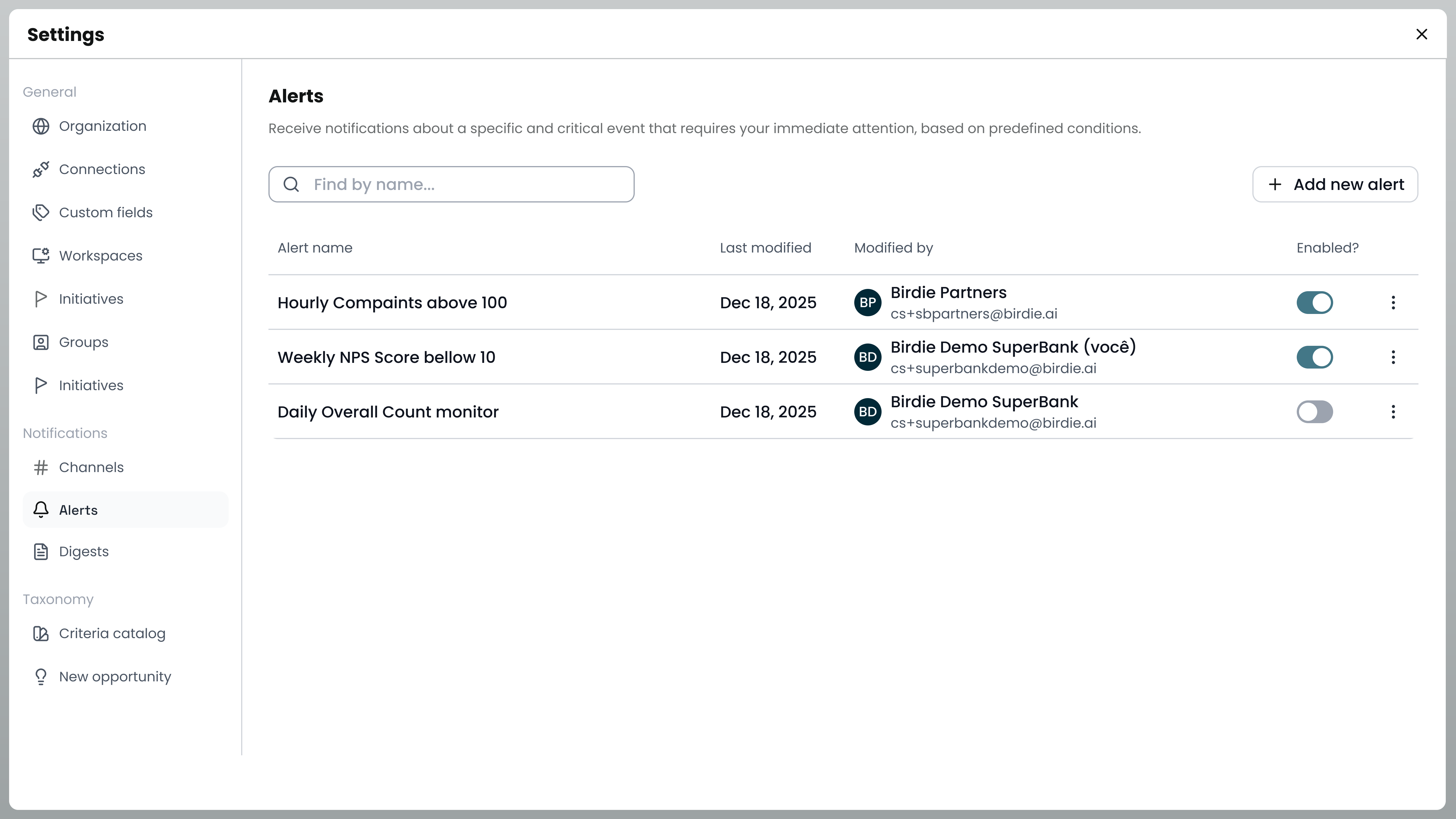
The Alerts feature allows you to monitor critical events by defining threshold conditions applied over specific metrics.
Located under Settings > Notifications > Alerts, this feature enables you to track when a metric goes above or below a chosen value.
Notifications are sent via dedicated channels like Email or Slack so you can respond immediately to data changes.\
## Viewing & Searching
The Alerts list displays the Alert name, Last modified date, Last modified by, and the current Enabled? status.
You can find specific alerts quickly by using the "Search digest" bar at the top of the interface.
## Creating New Data
{% stepper %}
{% step %}
### Click the "+ Add new alert"
{% endstep %}
{% step %}
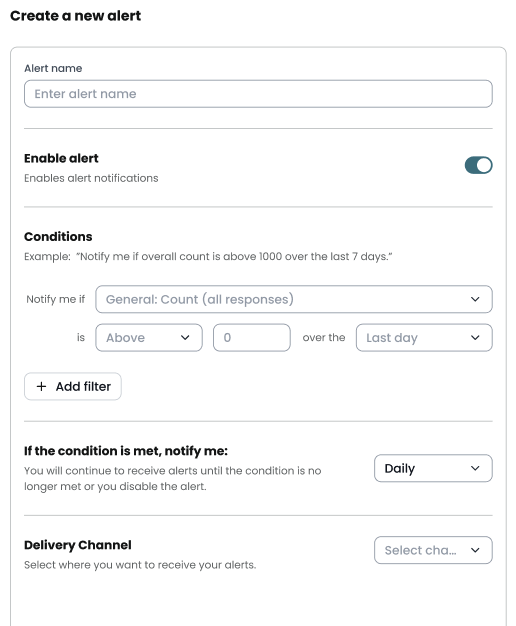
### Fill in the form
* **Name**, a text field for providing a custom label to identify the alert.
* **Enabled Toggle**, a switch used to activate or deactivate the alert without deleting it.
* **Metric Dropdown,** a menu to select the primary data metric to monitor (e.g., Overall: Count).
* **Operator Dropdown**, a selector to define the comparison logic (e.g., "above" or "below").
* **Threshold Input**, a numeric field to establish the value that triggers the alert.
* **Timeframe Dropdown**, a menu to set the duration of data to analyze (e.g., "last 30 days").
* **Filter**, a button to append additional conditional layers to the alert logic.
* **Notification Frequency**, a toggle button to select how often updates are sent (Hourly, Daily, Weekly, or Monthly).
* **Delivery Channel**, a dropdown to choose the platform for receiving the alert (e.g., Slack).
{% hint style="warning" %}
To use channels in your alerts, please complete the configuration first. Reference this article for more information.
{% endhint %}
{% endstep %}
{% step %}
### Save
Save the record to finish the configuration
{% endstep %}
{% endstepper %}
## Modifying Existing Data
{% stepper %}
{% step %}
### Click the "Edit" icon button
{% endstep %}
{% step %}
### Modify the form
* **Name**, a text field for providing a custom label to identify the alert.
* **Enabled Toggle**, a switch used to activate or deactivate the alert without deleting it.
* **Metric Dropdown,** a menu to select the primary data metric to monitor (e.g., Overall: Count).
* **Operator Dropdown**, a selector to define the comparison logic (e.g., "above" or "below").
* **Threshold Input**, a numeric field to establish the value that triggers the alert.
* **Timeframe Dropdown**, a menu to set the duration of data to analyze (e.g., "last 30 days").
* **Filter**, a button to append additional conditional layers to the alert logic.
* **Notification Frequency**, a toggle button to select how often updates are sent (Hourly, Daily, Weekly, or Monthly).
* **Delivery Channel**, a dropdown to choose the platform for receiving the alert (e.g., Slack).
{% endstep %}
{% step %}
### Save
Save the record to confirm the changes
{% endstep %}
{% endstepper %}
## Removing Data
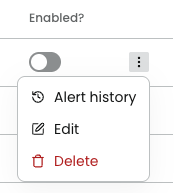
If an alert is no longer needed, it can be permanently removed by clicking the Delete icon (trash) in the Alerts list.
## Advanced & Unique Features
### Preview Alert Format
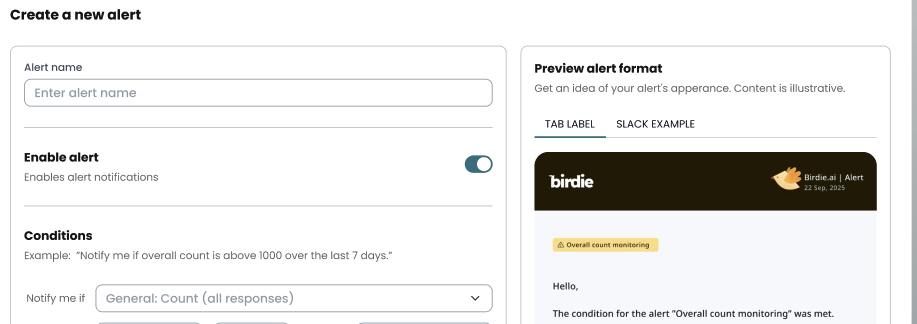
While setting up your alert, use the "Preview alert format" section to switch between Email sample and Slack sample to see how the notification will look.
### Alert History Monitoring
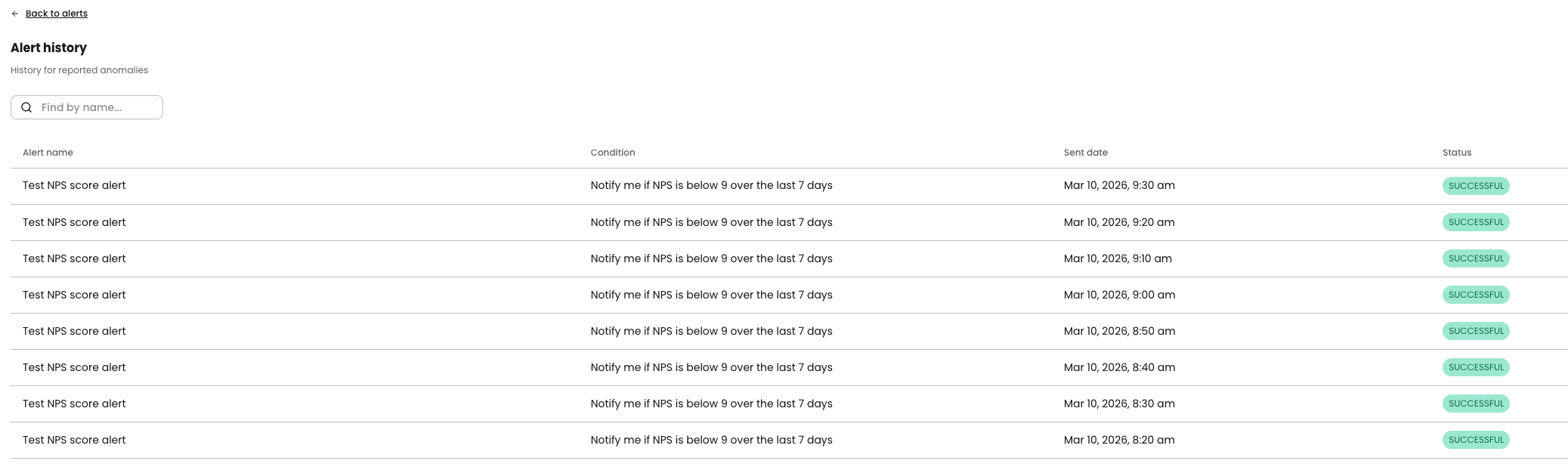
Use the History tool to track every time an alert was triggered; this is essential for identifying cases where an alert might have failed to be sent or received.
## Troubleshooting & FAQs
* "I'm not receiving notifications"\
Solution: If an expected alert did not arrive, check the History to see if the threshold was met and if the delivery to your chosen channel was successful.
* "Alert numbers seem incorrect"\
Soluction: Verify your "Add filter" settings to ensure only the intended records are being counted toward the metric.
---
# Agent Instructions
This documentation is published with GitBook. GitBook is the documentation platform designed so that both humans and AI agents can read, navigate, and reason over technical content effectively. Learn more at gitbook.com.
## Querying This Documentation
If you need additional information that is not directly available in this page, you can query the documentation by asking a question.
Perform an HTTP GET request on the following URL with the `ask` and `goal` query parameters:
```
GET https://ask.birdie.ai/admin-and-settings/notifications/alerts.md?ask=&goal=
```
`ask` is the immediate question: it should be specific, self-contained, and written in natural language.
`goal` is what the user is ultimately trying to achieve, the reason they need the answer. Sharing it helps GitBook give you a better, more relevant answer. A goal is most helpful when it describes the outcome the user wants rather than restating the question. For example, with `ask=how do I create an API token`, a goal like `automate deployments from our CI pipeline` lets GitBook tailor the answer to that use case.
The response will contain a direct answer to the question and relevant excerpts and sources from the documentation.
Use this mechanism when the answer is not explicitly present in the current page, you need clarification or additional context, or you want to retrieve related documentation sections.