Qualtrics
Overview
Birdie integrates with Qualtrics to ingest survey responses and their related attributes (linked contact data) into your Birdie workspace. This allows you to centralize customer feedback from Qualtrics alongside other sources and analyze it with Birdie AI.
Requirements
To enable the integration, you will need:
An active Qualtrics account with API access.
Either an OAuth Authentication (Client Credentials Grant) or an API Token (explained below).
Setup in Qualtrics
Option 1 (Recommended): OAuth Authentication (Client Credentials)
OAuth Authentication is the recommended method if you want secure access managed by Qualtrics. Client Credentials Grant is intended for server-to-server communication, where no user interaction is needed.
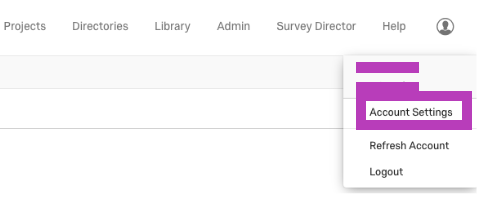
Create an OAuth Client in Qualtrics
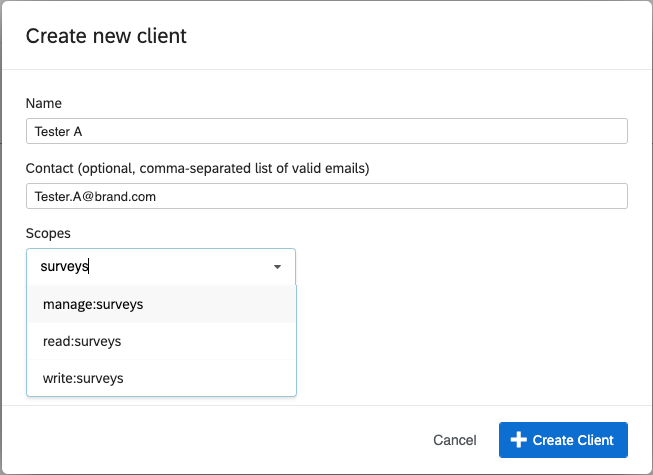
Fill in the name and contact information for the client.
Under Scopes, select the required API scopes that allow Birdie to read surveys and related metadata:
read:survey_responses
read:surveys
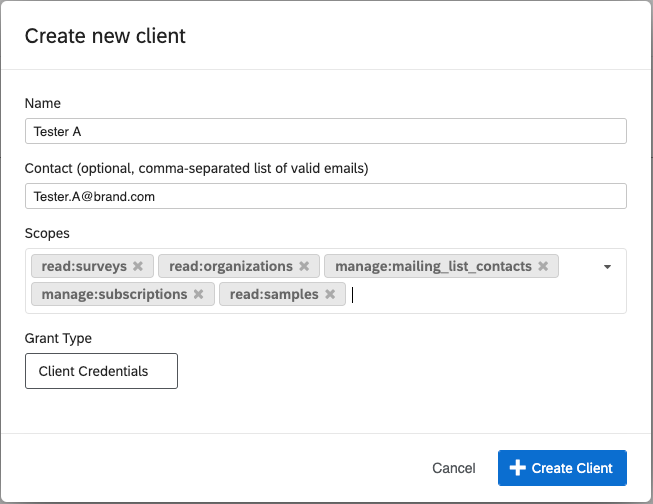
In Grant Type, select Client Credentials.
Click Create Client.
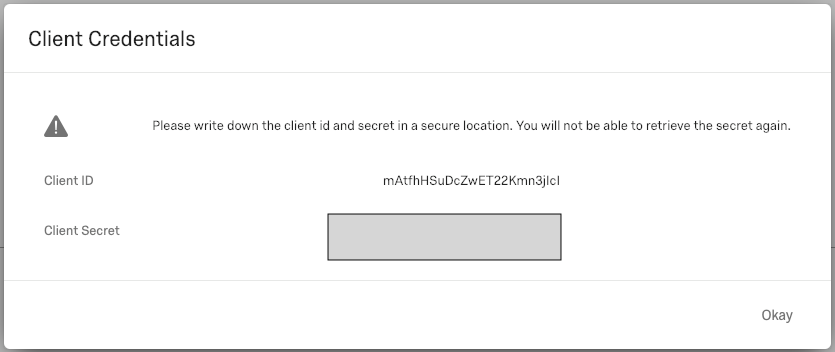
Copy and save the generated Client ID and Client Secret. They will only be shown once.
Provide Credentials to Birdie
Share securely with Birdie:
Client ID
Client Secret
Data Center URL (This data center is visible in your Qualtrics URL. Example: https://iad1.qualtrics.com)
Once you exit out of this window, the Client Secret is irretrievable. If you lose or forget your Client Secret, you will need to repeat the above process to generate a new one.
Option 2: Connect via API Token
If OAuth is not available, you can connect using a Qualtrics API Token.
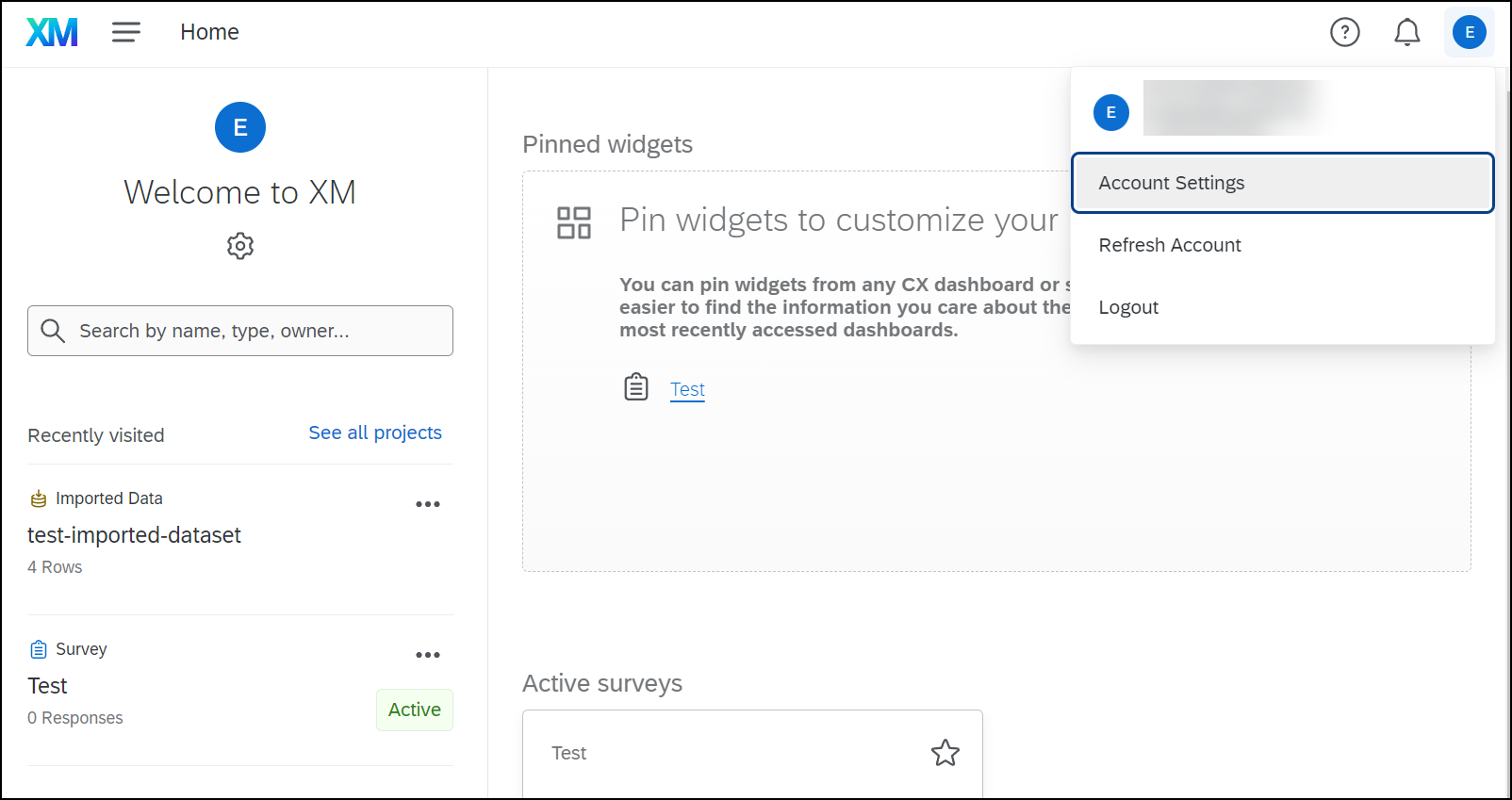
Retrieve Your API Token
Log in to Qualtrics.
Go to Account Settings (via the user dropdown).
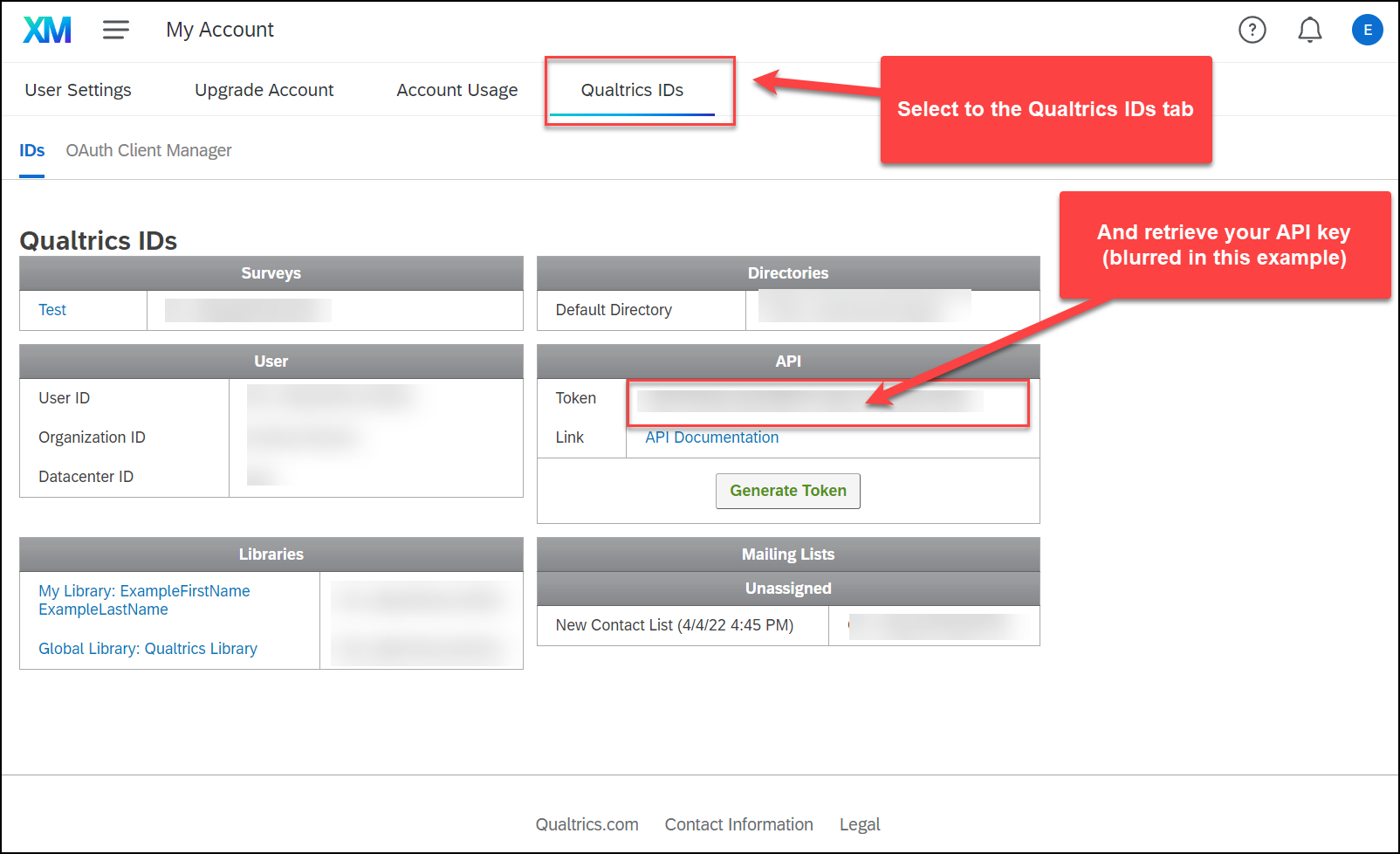
Open the Qualtrics IDs section.
Click Generate Token (if you don’t already have one).
Generating a new token will replace the old one immediately. Any existing integrations using the old token will stop working until updated.
Provide Credentials to Birdie
Share securely with Birdie:
API Token
Data Center URL (This data center is visible in your Qualtrics URL. Example: https://iad1.qualtrics.com)
Key Rotation Best Practices:
Rotate your API token regularly (at least once per year).
Consider migrating to OAuth Authentication, which provides automatic token expiry and reduces downtime risks.
Connect to Birdie
After you’ve generated either OAuth client credentials or an API Token and shared them securely, the Birdie team will configure the connector and confirm once the integration is active.
Data in scope
Once configured, the Qualtrics integration imports survey responses and their related attributes (such as contact data) from the projects you connect, so they can be analyzed alongside your other feedback sources in Birdie.
References
Last updated